
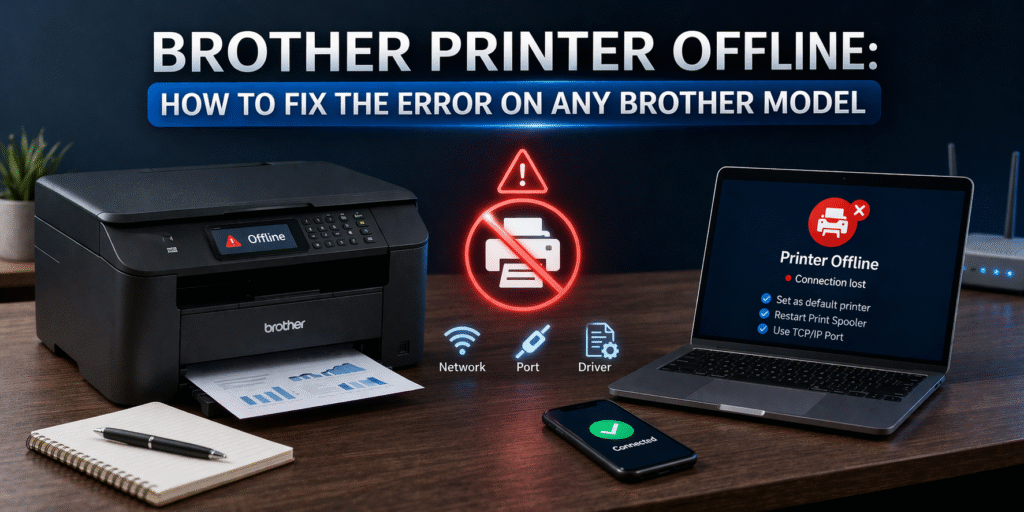
I’ve been fixing printer issues for more than a decade, working with home users, small businesses, and busy office setups across North America. And if there’s one issue that shows up again and again with Brother printers, it’s this:
“My Brother printer is offline, but everything looks fine.”
It’s one of those problems that feels random, but it’s not. There’s always a reason behind it, and once you fix the root cause properly, it usually stays fixed.
Let’s go through it step by step, the same way I troubleshoot it in real situations.
Why Your Brother Printer Shows Offline
When your Brother printer says offline, it doesn’t mean it’s broken. It means your computer can’t communicate with it properly.
That communication depends on:
- Network connection (WiFi or Ethernet)
- Printer port (WSD or TCP/IP)
- Print spooler service
- Firewall or antivirus settings
From hands-on experience, the most common causes are:
- WSD port instability
- Printer not set as default
- Stuck print queue
- Network IP conflicts
- Firewall blocking communication
👉 Most of the time, it’s a software or network issue, not hardware.
Quick Fix (Try This First)
Before getting into settings, do a full reset:
- Turn off your Brother printer
- Restart your computer
- Restart your router
- Turn the printer back on
👉 This clears temporary network glitches and reconnects devices.
If it still shows offline, move on to the actual fixes.
Fix 1: Set Brother Printer as Default
This is simple but often overlooked.
Steps:
- Go to Control Panel → Devices and Printers
- Right-click your Brother printer
- Click Set as Default Printer
Also check:
- Right-click → make sure “Use Printer Offline” is unchecked
👉 I’ve fixed many cases with just this step.
Fix 2: Restart Print Spooler Service
The print spooler manages print jobs. If it gets stuck, your printer appears offline.
Steps:
- Press Windows + R
- Type services.msc
- Find Print Spooler
- Right-click → Restart
If needed:
- Stop the spooler
- Go to:
C:\Windows\System32\spool\PRINTERS
- Delete all files
- Start spooler again
👉 This clears stuck print jobs and restores communication.
Fix 3: Check Your Connection
For WiFi printers:
- Ensure printer and PC are on the same network
- Avoid guest networks
- Check signal strength
For USB:
- Try a different cable
- Switch USB port
👉 In real troubleshooting, connection issues are more common than people expect.
Fix 4: Change Printer Port (Most Important Fix)
This is the biggest reason Brother printers keep going offline.
Problem:
Printer is using WSD port
WSD:
- Automatic setup
- But unstable
- Breaks after updates or network changes
Solution: Switch to TCP/IP Port
Steps:
- Go to Devices and Printers
- Right-click Brother printer → Printer Properties
- Go to Ports tab
If you see WSD → that’s likely the issue.
Now fix it:
- Click Add Port
- Select Standard TCP/IP Port
- Enter your printer’s IP address
- Complete setup
- Select new port → Apply
👉 This is the fix I rely on most. It prevents recurring offline issues.
Fix 5: Find Your Printer’s IP Address
You’ll need this for port setup.
You can find it by:
- Printing a network configuration page
- Checking router device list
- Viewing printer display settings
It usually looks like:
👉 192.168.x.x
Fix 6: Assign Static IP (Permanent Fix)
This is something I always recommend.
Why?
Your router changes the printer’s IP address.
Your PC still looks for the old one → printer shows offline.
Fix:
- Log into your router
- Assign a static IP to your printer
👉 This keeps your connection stable long-term.
Fix 7: Check Firewall or Antivirus Blocking
Security software can block printer communication silently.
Quick test:
- Disable firewall temporarily
- Try printing
If it works:
👉 Firewall is blocking your printer
Fix:
- Allow printer through firewall
- Enable File and Printer Sharing
- Add printer IP as trusted
👉 This often happens after system updates.
Fix 8: Reinstall Brother Printer Driver
If the driver is corrupted, nothing works properly.
Steps:
- Remove printer from system
- Download latest Brother driver
- Install again
- Add printer manually using IP
👉 Manual setup is more stable than automatic detection.
Mac Users (Quick Fix)
If you’re using macOS:
- Go to Printers & Scanners
- Remove Brother printer
- Re-add using IP tab
- Use:
- Protocol: HP Jetdirect
👉 This avoids common connection issues.
Why Your Brother Printer Keeps Going Offline
This is where most people get stuck.
They fix it once, but the problem comes back.
That’s because temporary fixes don’t solve:
- WSD port instability
- Dynamic IP changes
- Firewall rule resets
👉 Permanent solution:
- Use TCP/IP port
- Assign static IP
- Configure firewall properly
When You Should Get Expert Help
You may need help if:
- Printer disconnects randomly
- Multiple devices can’t print
- Network setup is complex
- You’re unsure about port or IP settings
👉 In these cases, remote support is faster than trial and error.
Final Thoughts from Real Experience
After years of fixing Brother printers, here’s what I’ve learned:
- Offline errors are rarely hardware-related
- Most issues are communication failures
- WSD port causes most problems
- TCP/IP + static IP solves them long-term
Once you set it up properly, you won’t have to deal with the issue again.
FAQs
Why is my Brother printer offline but connected?
Because your computer cannot communicate with it properly. This is usually due to port issues, network problems, or firewall blocking.
How do I fix Brother printer offline quickly?
Restart devices, set printer as default, restart spooler, and switch to TCP/IP port.
What port should I use for Brother printers?
Standard TCP/IP port is recommended for stable performance.
Why does my printer go offline after restarting router?
Because the IP address changes. Assigning a static IP fixes this.
Can antivirus cause printer offline issues?
Yes, antivirus software can block communication between your printer and computer.
Is this a hardware problem?
In most cases, no. It’s a network or configuration issue.
